
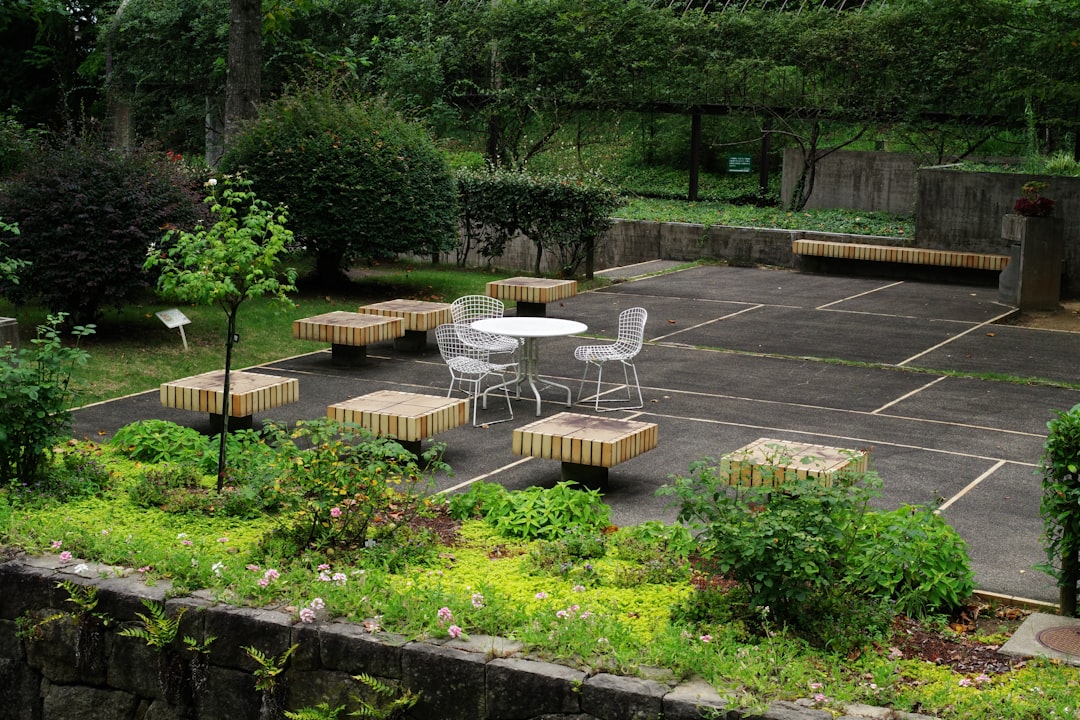
Imagine stepping into a garden you've designed yourself. Every plant, path, and patio is exactly where you want it, all arranged perfectly to match your vision.
This is not just a dream; it's something you can achieve with the right tools. If you're looking to bring your garden ideas to life, SketchUp might be the perfect solution for you. SketchUp is a powerful, user-friendly software that lets you create detailed 3D models of your dream garden.
It's like having a digital canvas where your imagination can run wild, allowing you to experiment with different layouts and designs without ever lifting a spade. Think about the endless possibilities. You can plan every detail, from the placement of your favorite flowers to the exact position of a cozy bench. You can even visualize how sunlight will affect your garden at different times of the day. With SketchUp, you're not just designing a garden; you're crafting an experience that you'll cherish for years. Curious to learn how you can transform your outdoor space with SketchUp? Read on to discover how this innovative tool can help you create the garden of your dreams.
Getting Started With Sketchup
Starting your garden design journey with SketchUp can be both exciting and daunting. But once you get the hang of it, you'll wonder how you ever managed without this powerful tool. Imagine seeing your garden ideas come to life in 3D before you even dig up the first patch of soil. SketchUp offers you a bird's eye view of your plans, helping you avoid costly mistakes and optimize your space effectively. Ready to dive in? Let’s get started!
Downloading And Installing
Before you can begin designing, you need to download SketchUp. Go to the official website and choose the version that suits your needs. If you're just starting out, the free version is perfect for learning the ropes. Once downloaded, follow the installation prompts, which are straightforward and user-friendly. Remember, installing the software is the first step towards transforming your garden vision into reality.
Exploring The Interface
Once SketchUp is installed, take a moment to explore the interface. Familiarize yourself with the toolbar, menu options, and workspace. You’ll notice a clean layout with intuitive icons. Don’t rush; play around with the view settings. Rotate, zoom, and pan around to get comfortable with how everything moves. This exploration phase is crucial for building confidence before diving into actual design work.
Basic Tools Overview
SketchUp’s basic tools are your bread and butter for garden design. Start with the pencil tool to sketch outlines and shapes. The push/pull tool lets you add depth, bringing your designs to life. Use the move and rotate tools to adjust elements exactly how you want them. Experiment with these tools by creating simple designs. Can you draw a rectangle and turn it into a raised garden bed? By mastering these basics, you'll set a solid foundation for more complex designs.
As you familiarize yourself with SketchUp, consider how these tools can enhance your garden design process. What creative ideas can you bring to life that were previously just scribbles on paper? Dive in, experiment, and let your garden dreams unfold in 3D splendor.
Creating A Base Plan
SketchUp helps design your garden by creating a base plan. Start by sketching your garden layout. Use simple shapes and lines to map out areas for plants, pathways, and features. This tool makes it easy to visualize changes and plan your perfect outdoor space.
Creating a base plan in SketchUp for garden design is an exciting starting point that sets the stage for your creative vision. This essential step involves laying down the groundwork for your garden layout, ensuring every detail aligns with the natural surroundings. By focusing on precise dimensions and clear boundaries, you create a solid foundation for a successful design. Let's dive into the details that will help you craft a stunning garden base plan.
Importing Site Layouts
Begin by importing existing site layouts to understand the landscape you are working with. You can use PDF, CAD files, or even images as references in SketchUp. This process allows you to visualize the current topography and structures. It’s like having a bird’s eye view of the area, helping you spot opportunities and potential challenges. Are there slopes or existing trees you need to consider?
Setting Up Dimensions
Accurate dimensions are crucial in creating a reliable base plan. Use SketchUp's measuring tools to set up your garden space with precision. This ensures that every element fits perfectly within the physical boundaries. Think about how much space you need for pathways, flower beds, and seating areas. SketchUp lets you adjust and refine these dimensions easily.
Defining Boundaries
Defining boundaries is about marking the edges of your garden. This could include fences, walls, or property lines. SketchUp allows you to draw these boundaries with clear lines, ensuring a well-organized plan. Consider how boundaries affect the flow of the garden. Are they restricting or enhancing the space? Understanding this helps you create a harmonious design that integrates seamlessly with its surroundings. Creating a base plan is not just technical—it’s the foundation of your garden story. Each step is an opportunity to visualize your dream garden and make it a reality. As you lay the groundwork, think about how your garden will grow and thrive. What story do you want your garden to tell?
Designing Garden Elements
SketchUp simplifies garden design by allowing users to visualize and plan outdoor spaces effectively. Create detailed layouts, add plants, and experiment with various elements to achieve the perfect garden. This tool helps in designing realistic garden elements with ease.
Designing a garden can be both a rewarding and challenging endeavor. With SketchUp, you can transform your garden ideas into a digital reality. This tool allows you to visualize different elements of your garden before you break ground. Imagine the satisfaction of seeing your garden design come to life on screen, ensuring every detail is just the way you want it.
Adding Paths And Walkways
Paths and walkways guide the flow of your garden. In SketchUp, start by using the "Line" tool to outline where your paths will go. Consider the natural flow of movement in your garden. Will you be leading guests to a special seating area or towards a hidden nook? Once you’ve outlined your paths, experiment with different materials. SketchUp’s texture library offers a variety of options like stone, gravel, or wood. Adjusting the width and curvature of paths can significantly impact the overall aesthetics and functionality.
Incorporating Water Features
Water features can add tranquility and elegance to your garden. Use SketchUp to place elements like ponds, fountains, or streams in your design. First, decide on the location. Would a pond be best suited in a shaded corner, or should it be a central feature? SketchUp allows you to adjust the dimensions and style of your water feature easily. Reflect on the sound and movement it will bring to your space. You can even simulate reflections and shadows to see how it interacts with other garden elements.
Designing Plant Beds
Plant beds are the heart of any garden. With SketchUp, you can plan the size and shape of each bed with precision. Think about the types of plants you want to include and how they will grow over time. Create layers to represent different plant heights, colors, and textures. This can help you visualize seasonal changes. You can also experiment with different layouts to maximize sunlight exposure and complement existing garden features. By using SketchUp for your garden design, you can ensure that every element complements the other, creating a harmonious outdoor space. What garden element excites you the most to design?
Utilizing 3d Models
Utilizing 3D models in SketchUp can transform your garden design process. This feature offers a vivid, realistic view of your outdoor space. Visualizing potential designs becomes more intuitive and fun. You can explore and modify every detail in a virtual environment. This enhances creativity and precision, ensuring you achieve your dream garden design. Let's explore how to make the most of 3D models in SketchUp.
Finding And Importing 3d Models
Start by accessing the vast 3D Warehouse in SketchUp. This online library offers countless models for your garden. Search for elements like plants, furniture, and structures. Select the models that fit your design vision. Importing is simple with the 'File' and 'Import' options. This process brings the selected models into your SketchUp workspace. Now, they're ready to be part of your garden design.
Customizing Garden Furniture
Personalizing garden furniture in SketchUp is straightforward. Select the imported furniture model. Use the 'Scale' tool to adjust the size. The 'Rotate' tool changes its orientation. Modify colors and materials with the 'Paint Bucket' tool. This customization process helps match your garden's style. You can create unique pieces that fit perfectly into your design.
Integrating Structures And Pergolas
Incorporating structures like pergolas adds depth to your garden. First, search for pergola models in the 3D Warehouse. Import the selected model into your SketchUp file. Position it using the 'Move' tool. Adjust its size to fit your space using 'Scale'. Experiment with different styles and materials. These elements enhance your garden's functionality and beauty.
Lighting And Shadows
Lighting and shadows can transform your garden design in SketchUp from a flat plan to a dynamic, lifelike space. Understanding how natural and artificial light interacts with your design can highlight features and create moods. These elements are crucial for visualizing how your garden will look at different times of the day and year. Let's dive into how you can use SketchUp to achieve this.
Simulating Natural Light
Simulating natural light in SketchUp is a game-changer for garden design. You can set the geographical location and time of year to see how sunlight falls across your garden. This helps you decide where to place features like patios, ponds, and flower beds to maximize sunlight.
Have you ever wondered how your garden will look in winter versus summer? By adjusting the time settings, you can see the shadows lengthen or shorten, giving you a clear idea of seasonal changes. This simulation allows you to plan for plants that need more sun or shade.
Adding Artificial Lighting
Artificial lighting can add magic to your garden at night. SketchUp allows you to place lights in strategic locations to highlight pathways, trees, or water features. Consider using different types of lights, like spotlights or lanterns, to create varied effects.
Have you ever strolled through a garden at night and noticed how certain areas glow? You can replicate this by experimenting with light intensity and color in SketchUp. Proper lighting can make your garden a welcoming space after sunset.
Adjusting Shadow Effects
Shadows add depth and texture to your garden design. In SketchUp, you can adjust shadow settings to see how they interact with your space. Try playing with different times of day to observe how shadows shift and change.
Have you considered how a tree's shadow might fall on your favorite reading nook? By adjusting shadows, you can ensure your garden's layout is both functional and visually appealing. This attention to detail helps create a harmonious environment.
Lighting and shadows are not just about aesthetics; they're about functionality and mood. How will you use these features to enhance your garden design?
Adding Textures And Materials
SketchUp is a powerful tool for garden design. One of its key features is the ability to add textures and materials to your models. This brings your garden designs to life, making them more realistic and visually appealing.
Applying Surface Textures
Surface textures make garden elements look real. They can represent materials like wood, concrete, or grass. To apply a texture, select the surface and choose a texture from SketchUp's library. Adjust the scale for a perfect fit. This makes paths, patios, and walls look authentic.
Using Material Libraries
Material libraries offer a variety of options. You can browse through materials like stone, brick, or water. These libraries save time and provide quality textures. Simply drag and drop materials onto your garden elements. This helps in achieving a professional look.
Creating Custom Materials
Custom materials add a unique touch to your garden design. You can create them using images or color samples. Upload your images into SketchUp, then apply them to surfaces. Adjust the pattern to fit your design needs. This allows for personalized creativity in your garden projects.
Finalizing And Exporting Designs
Finalizing and exporting your garden design in SketchUp is the last step. This stage is crucial for sharing your vision with clients. Ensuring the design is perfect is key. Exporting allows you to present your work professionally.
Reviewing Design Details
Check all elements in your SketchUp design. Ensure plants and structures are in their correct places. Look for any mistakes or missing details. Zoom in to see smaller parts of your design. Make sure colors and textures look natural. This step ensures your design is ready for export.
Exporting For Clients
SketchUp offers several export options. Choose a format that suits your client's needs. Common formats include PNG, PDF, and JPEG. Each format has its advantages. PNG and JPEG are great for images. PDF is ideal for complete documents. Exporting in the right format ensures your clients can view your designs easily.
Preparing For Presentation
Create a presentation to showcase your garden design. Use exported images or files from SketchUp. Add descriptions and notes to explain your ideas. Highlight key features of your garden design. Use simple language for clarity. Your presentation should be clear and engaging. This helps clients understand your vision better.
Tips For Effective Garden Design
Creating a garden design with Sketchup involves using 3D modeling tools to visualize spaces. This software helps plan layouts by allowing users to experiment with different elements and structures. Sketchup's user-friendly interface makes it easier to design beautiful and functional gardens without advanced technical skills.
Designing a garden using SketchUp can be both exciting and rewarding. This versatile tool helps you visualize and plan your outdoor space with precision. To make the most out of your garden design, consider several key tips. These insights can transform your digital plans into a beautiful, functional garden.
Balancing Aesthetics And Function
A garden should look good and serve a purpose. Choose plants that complement each other in color and shape. Ensure pathways and seating areas are accessible and comfortable. SketchUp allows you to experiment with different layouts. Use it to find a balance between beauty and practicality.
Incorporating Sustainability
Sustainability is crucial for a garden's long-term health. Opt for native plants that require less water and care. Design rain gardens to manage stormwater naturally. Use SketchUp to visualize eco-friendly materials and layouts. This approach benefits the environment and reduces maintenance needs.
Considering Seasonal Changes
Gardens change with the seasons. Plan for year-round interest by including plants with different blooming times. In SketchUp, simulate seasonal shifts to see how your garden transforms. Consider the position of the sun in each season. This ensures optimal plant growth and vibrancy throughout the year.
Frequently Asked Questions
What Is Sketchup Used For In Garden Design?
SketchUp is a 3D modeling tool ideal for visualizing garden designs. It allows users to create detailed layouts, experiment with different elements, and see how plants and structures fit together. This helps in efficient planning and ensuring aesthetic appeal.
How Do I Start Garden Design In Sketchup?
Begin by sketching your garden's outline in SketchUp. Add dimensions and use the tool's library to incorporate plants, paths, and structures. Utilize layers to organize different elements and use the 3D view to visualize the entire garden layout.
Can Sketchup Help With Plant Selection?
Yes, SketchUp offers an extensive library of plants and landscaping features. You can experiment with various plant types, sizes, and placements. This helps in visualizing how different plants will look and interact in your garden, ensuring a cohesive design.
Is Sketchup Easy For Beginners In Garden Design?
SketchUp is user-friendly and ideal for beginners in garden design. It offers intuitive tools and a vast library of resources. Online tutorials and forums further assist newcomers, making it easier to learn and create impressive garden layouts.
Conclusion
SketchUp makes garden design easy and fun. Its tools help visualize ideas clearly. You can plan spaces efficiently. Experiment with layouts without any hassle. Adjusting designs is quick and straightforward. This software suits beginners and experts alike. Explore various features to enhance creativity.
Design vibrant gardens with ease. Bring your ideas to life. SketchUp transforms your garden plans into reality. Dive into garden designing today. Enjoy a rewarding creative process. Start crafting beautiful outdoor spaces with SketchUp now. Your garden vision awaits, ready to be designed.


